
Stop losing what you copied.

SwiftCopy remembers what you copy on your Mac, so you can find it and paste it again later. Click its icon in the menu bar, or press ⌘⇧C, to see everything you’ve copied.

Download on the Mac App Store

Free to try · Requires macOS 15.2 or later

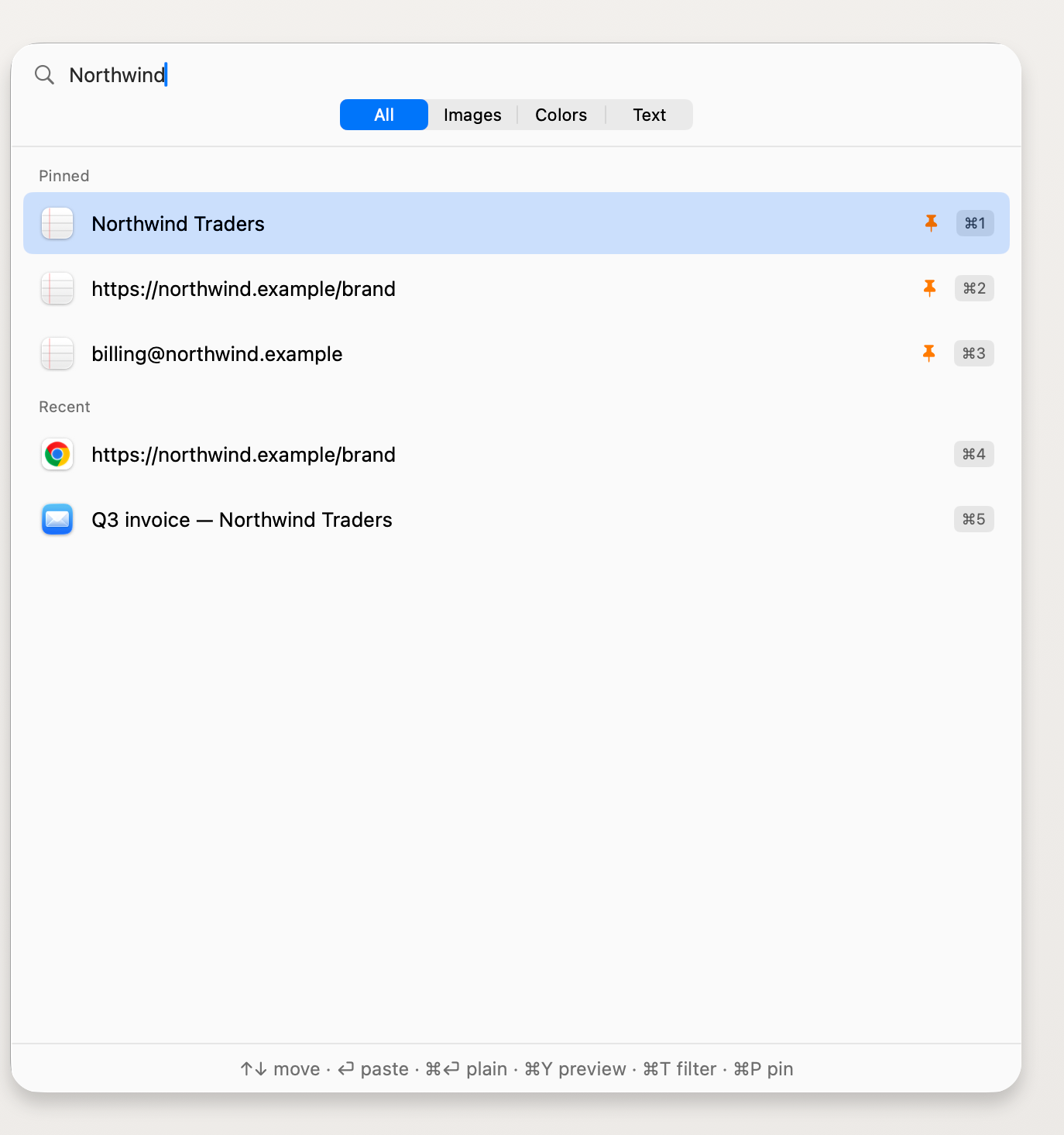
SwiftCopy’s clipboard history with pinned text and links above recent copies, including a chart, a HEX colour and web links.

How it works

  1. Copy as usual

    SwiftCopy saves the text, links, images and colours you copy. You don’t have to do anything different.

  2. Open SwiftCopy

    Click the SwiftCopy icon in the menu bar at the top of your screen, or press ⌘⇧C (Command-Shift-C). Type a word to search everything you’ve copied.

  3. Pick it and paste

    Click the item you want. It’s back on your clipboard, ready to paste with ⌘V (Command-V) like always.

Find anything you’ve copied

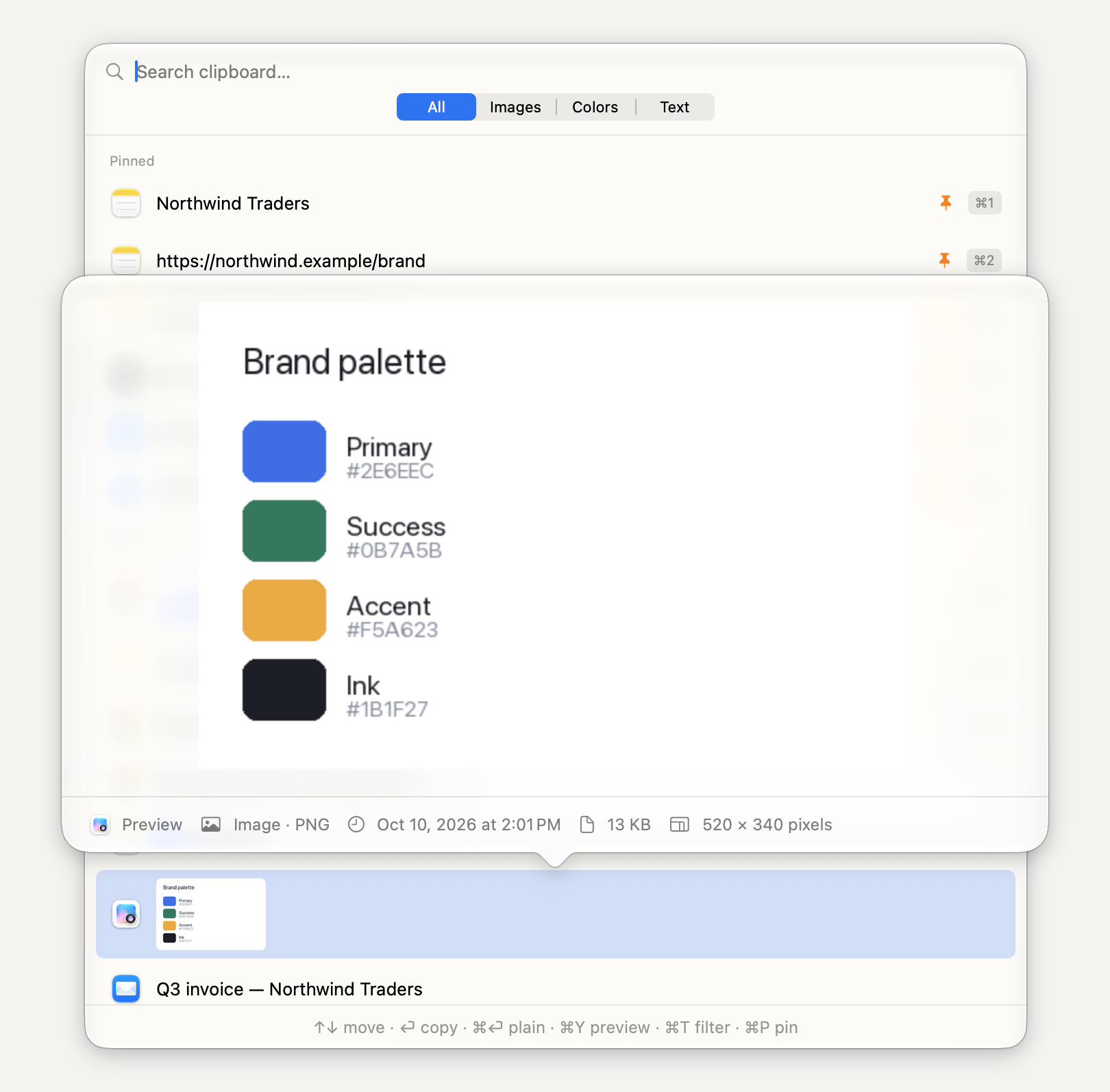
Copied something new and lost the link you needed? Open SwiftCopy and it’s still there. Type a few letters to search, then click the item to copy it again.

Pin the things you paste all day. Pinned items stay when you clear the rest.

Prefer the keyboard?

⌘⇧C
Open SwiftCopy
↑ ↓
Move through items
Return or ⌘C
Copy the selected item
⌘1–⌘9
Copy one of the first nine items
⌘V
Paste in your app
SwiftCopy searching for Northwind, with three pinned matches above two recent matches.

Know what you’re pasting

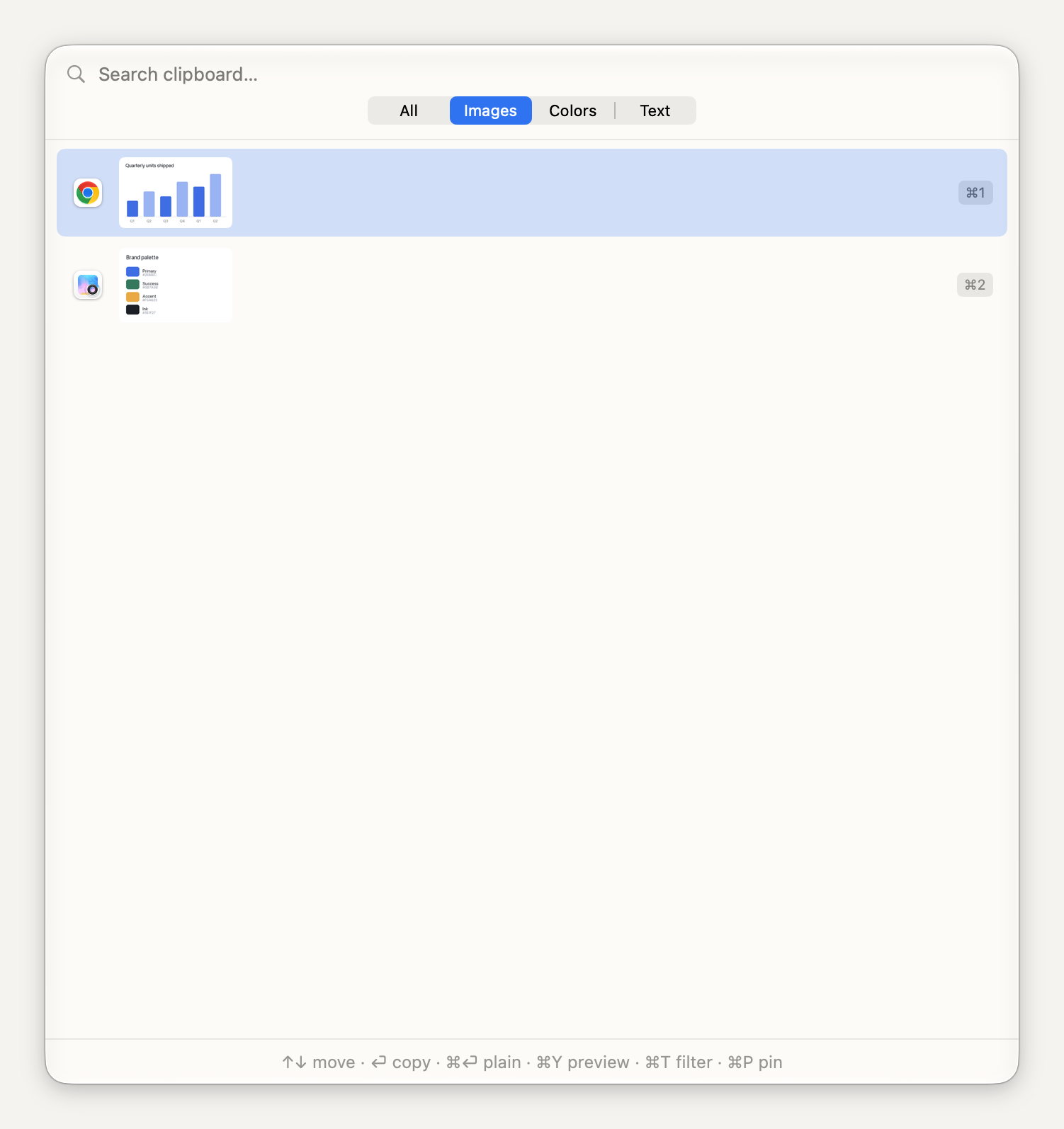
Not sure it’s the right one? Press ⌘Y (Command-Y) to take a closer look. See the first lines of long text, or an image at its real size, before you paste.

SwiftCopy previewing a copied brand palette, with its image type, date, file size and pixel dimensions beneath the image.

Text, images, colours

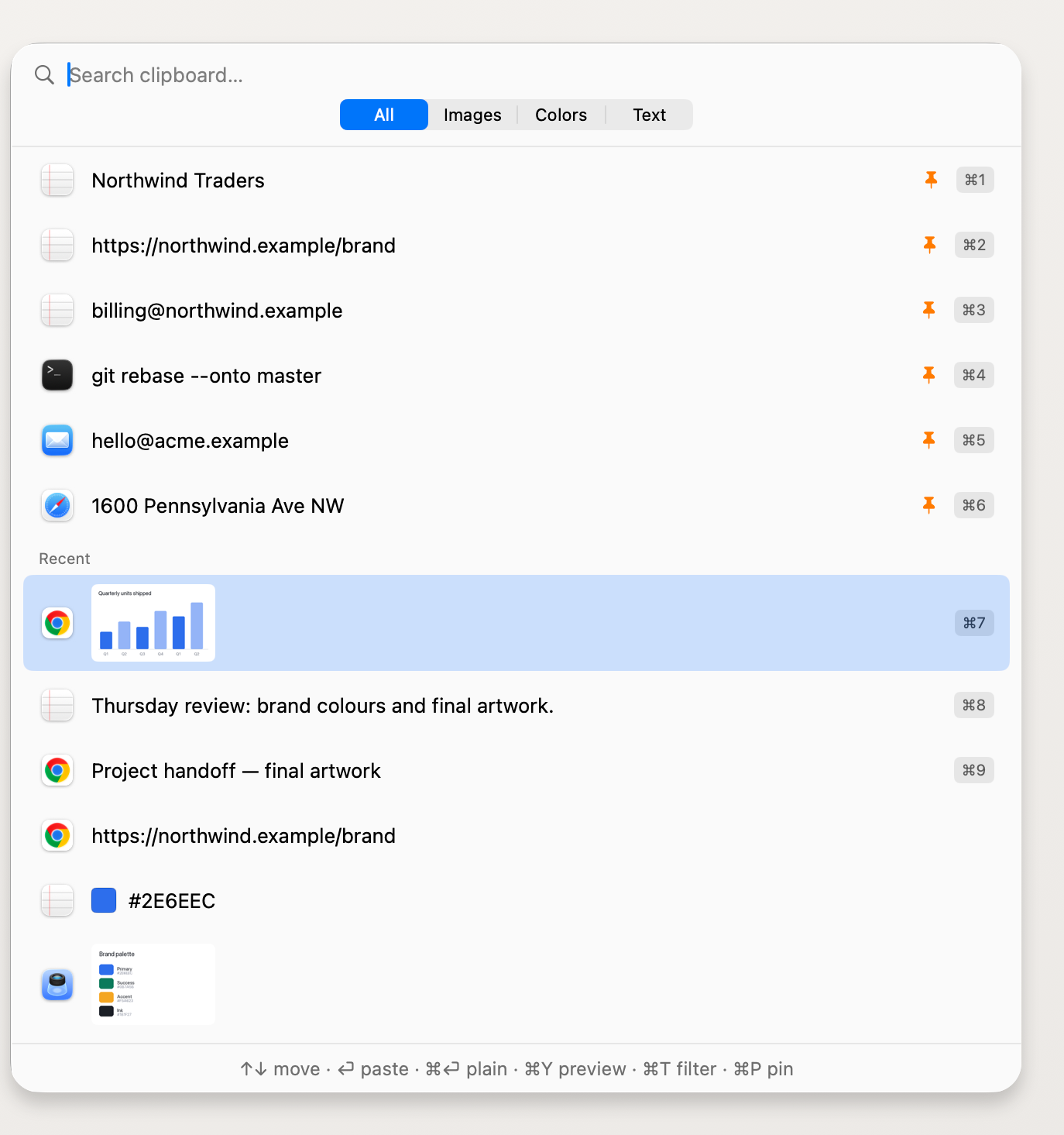
Show only text, images or colours with the buttons at the top of SwiftCopy, or press ⌘T. Copy a colour code like #2E6EEC and you’ll see a swatch of that colour. Formatted text keeps its formatting, and images keep their full quality.

SwiftCopy filtered to Images, showing the quarterly chart and brand palette with their source apps and keyboard shortcuts.

Your clipboard history stays on your Mac.

SwiftCopy saves your copied items on your Mac. There’s no account to create.

  • Apps such as password managers can mark copies as private. SwiftCopy skips those items.
  • Choose which apps SwiftCopy ignores.
  • Clear your clipboard history. Pinned items stay.

Frequently asked questions

Does SwiftCopy upload my clipboard history?

No. SwiftCopy saves your clipboard history on your Mac.

Is SwiftCopy a subscription?

No. SwiftCopy costs US $9.99 once. All future updates are included.

How does the 30-day trial work?

You can use everything free for 30 days. After that, SwiftCopy still saves what you copy, but you’ll need to buy it to open your clipboard history.

What about passwords and sensitive data?

SwiftCopy skips items that apps mark as private. You can also choose apps to ignore.

Do I need to grant any permissions?

No. SwiftCopy doesn’t ask for Accessibility access, the setting that lets apps control your Mac. When you pick an item, SwiftCopy copies it, and you paste it yourself with ⌘V.

Which Macs does it run on?

macOS 15.2 or later. SwiftCopy is available in 15 languages.

Find what you copied.

Download on the Mac App Store

Free to try · Requires macOS 15.2 or later