
How to find your clipboard history on Mac
On macOS Tahoe 26 and later, you can search your clipboard history in Spotlight. Press ⌘Space, then ⌘4 to open it. For a dedicated panel with pinned snippets, previews and filters, SwiftCopy brings your history into the app you’re already using.
Open clipboard history in Spotlight
- Press ⌘Space to open Spotlight.
- Press ⌘4 or click the Clipboard button beside the search field.
- If asked, allow Spotlight to show clipboard results.
- Type to find an item. Select it and press ⌘C to copy it.
- Return to your document and press ⌘V to paste.
This is the built-in option to try first if you just need to find something you copied. Apple explains the controls in its Spotlight clipboard history guide.
Keep frequently used copies close with SwiftCopy
SwiftCopy is a clipboard manager for macOS 15.2 and later. Its panel opens with ⌘⇧Cover your current app. Search as you type, move through items with the arrow keys, and press Return to put one back on your clipboard.
Turn on Auto-paste and grant Accessibility permission if you want the selected item pasted directly into the app behind the panel. Otherwise, paste it yourself with ⌘V.
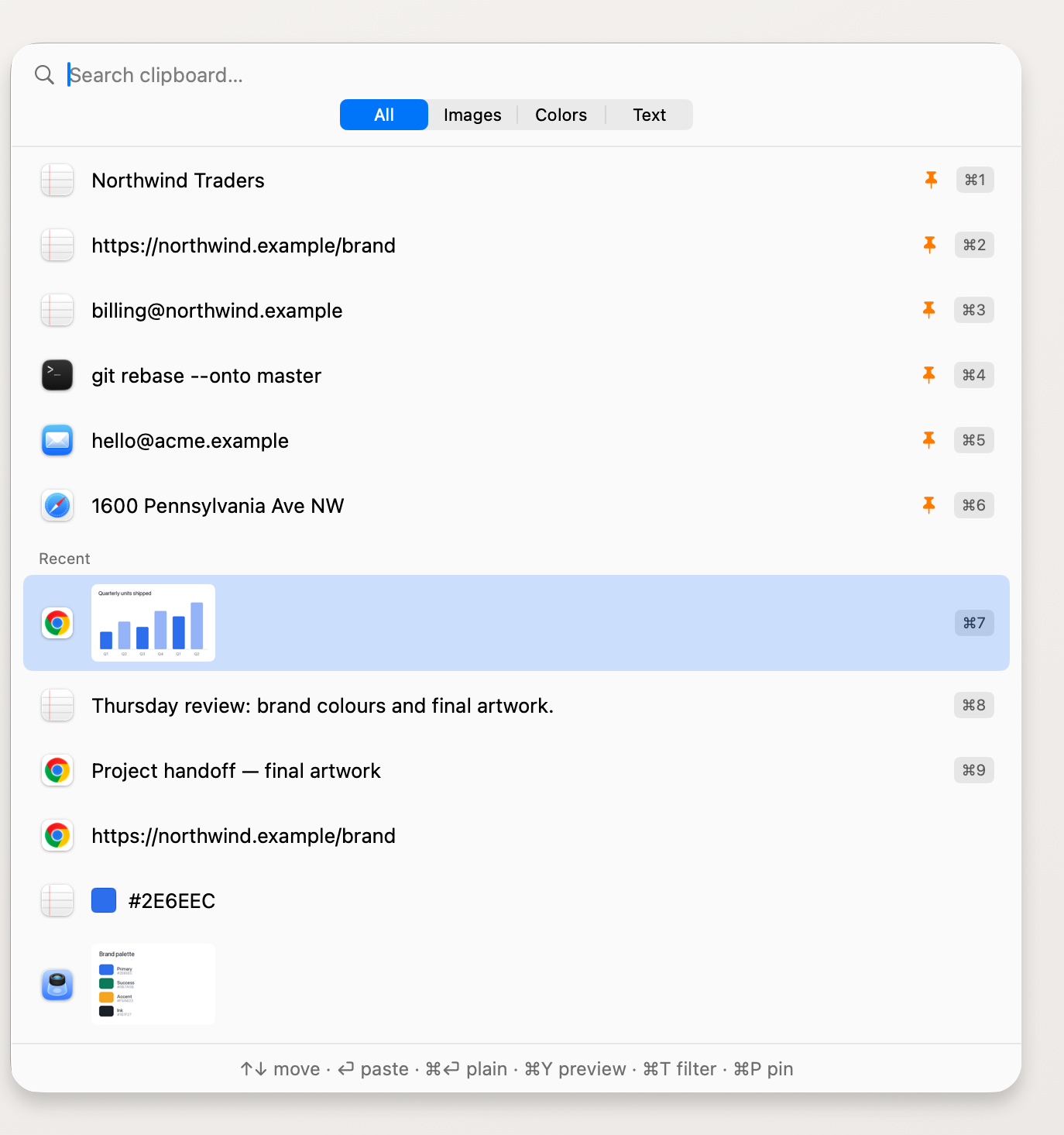
- Pin repeat snippets. Keep an address, response or code fragment above recent items. Pins survive clearing the rest of your history.
- Preview before pasting. Press ⌘Y to inspect text or an image without sending it anywhere.
- Filter what you see. Use ⌘T to switch between content filters, including images and HEX colours.
- Keep history local. SwiftCopy stores it on your Mac, without an account or cloud sync.
Can it recover something copied before it was running?
SwiftCopy builds its history from copies it captures while running. It cannot reconstruct earlier items that were already replaced on the system clipboard. Start it before the work you want to keep.
Choose the workflow you need
Start with Spotlight for built-in clipboard search. Choose SwiftCopy if you want a dedicated, keyboard-driven panel with pinned items, previews and filters, including on macOS 15.2. Comparing dedicated apps? Read SwiftCopy vs Paste.